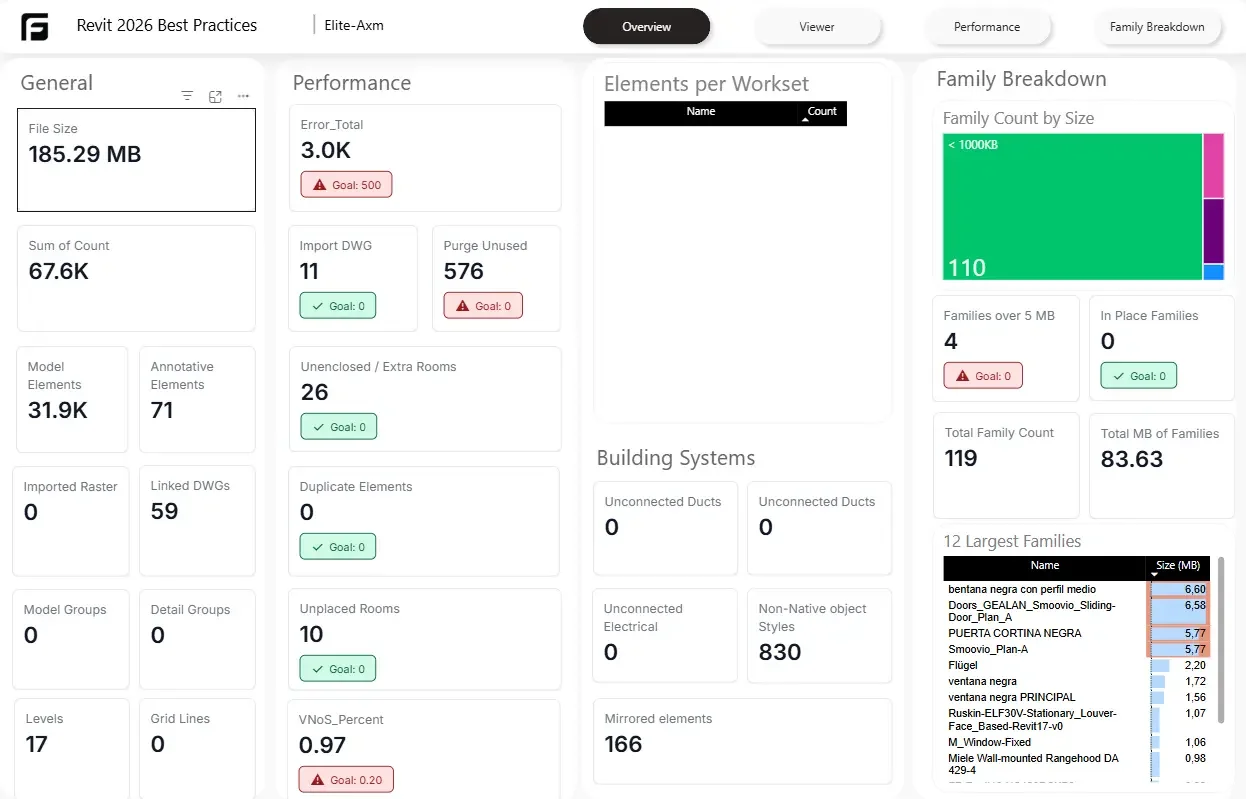
Inputs and access
You need a Revit model in Frame, an Autodesk Model Checker export for the same model revision, Power BI Desktop, and access to the model-health template. The report reads check results; it does not run Model Checker or invent missing checksets. Preview the public report above before choosing a Frame plan.
Set up the model-health dashboard
- Run your chosen Model Checker checkset in Revit and export its results.
- Open the matching model in Frame and prepare its report data.
- Generate the model-health template and open the
.pbitfile in Power BI Desktop. - Set the export-file parameter to your local checker workbook. Confirm the expected
Files,Checks, andElementssheets are present. - Refresh and compare the report’s pass/fail totals with the checker export.
- Inspect a known failing element in the Viewer. Unmatched IDs can indicate the wrong model revision or a missing element, not a passed check.
Family analysis needs the corresponding family data. When the model changes, rerun the checker and refresh both inputs. A local workbook path also needs a suitable refresh arrangement if you later publish to Power BI Service.
How Frame builds it
Your checksets, joined to your model