Line of Balance Visualization in Power BI for Construction Schedules
How Frame connects ACC models to Power BI and makes Line of Balance visualization possible, turning static schedules into live, navigable dashboards shaped around how the work actually happens.

Frame Team
Stop treating the schedule as a static document
Construction schedules are still mostly viewed as static outputs.
They get exported, printed, and pinned to the site office wall. Once that happens, the schedule becomes background noise. It does not respond to changes, it does not help the team navigate what is actually happening, and it certainly does not show how work moves through the building itself.
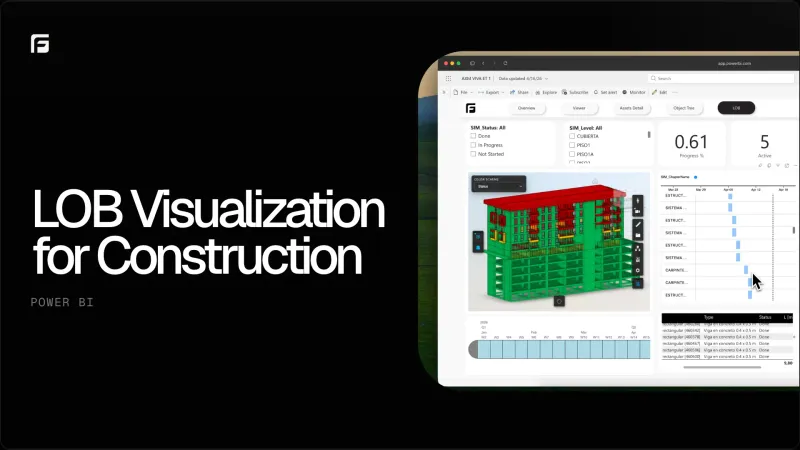
With Frame, that changes. A team we collaborate with has been experimenting with a different way to visualize project flow in Power BI, connecting directly to their ACC models through Frame. The idea was simple: pull live model data into Power BI, layer schedule metadata on each element, and create a dashboard the team can actually navigate instead of another document they ignore.
The result was a live view of how work flows through the building, with Line of Balance visualization embedded directly in the dashboard.
Quick walkthrough
Here is a short walkthrough showing the Line of Balance visualization in action, with model data connected to Power BI through Frame and layered schedule metadata.
Why we tested this
Most scheduling tools assume there is one right way to look at a plan. Usually, that means a dense Gantt chart that becomes harder to read as the project grows.
For repetitive work across multiple locations, floors, apartments, or building segments, a Gantt chart is not always the most useful view. What teams actually need is to see how trades move through space over time. They need to spot when crews interfere, when idle time is building up, and when handoffs are not lining up.
The problem is not a lack of data. The model already knows where every element is. The schedule already knows when every activity happens. The problem is that these systems rarely talk to each other in a format you can shape.
That is exactly what Frame solves. Frame pulls model data from Autodesk Forma and ACC into Power BI, then layers metadata on each element to create a live connection between the model and the schedule. Instead of treating these as separate systems, the dashboard treats them as one continuous context.
What Frame makes possible
This kind of visualization is only practical because Frame handles the pieces that would otherwise make it a custom development project:
- Direct ACC and Forma connection. Frame connects to your models in the cloud without manual exports or intermediate file formats. The data stays current because it is pulled from the source, not copied and pasted.
- Element-level data extraction. Frame extracts geometry, properties, and hierarchy from Revit, IFC, and Navisworks models, then structures it for Power BI. That means schedule metadata can be attached to actual elements, not abstract line items.
- Clean datasets out of the box. Frame transforms raw model data into structured tables optimized for Power BI. You do not need to clean, normalize, or reformat anything before building visualizations.
- Custom Power BI visual. Frame’s Power BI visual lets you interact with the 3D model directly inside the dashboard. Select an element in the viewer and the schedule data filters. Select a time period in the LOB chart and the viewer highlights what is active.
- Template-based starting point. Frame’s Power BI starter templates give you a working dashboard in minutes, not weeks. You customize from there instead of building from scratch.
Without these pieces, a Line of Balance dashboard connected to live model data would require engineering resources, API integrations, and ongoing maintenance that most teams do not have. Frame removes that barrier.
What Line of Balance reveals that Gantt charts hide
Line of Balance is not new, but embedding it inside a live Power BI dashboard connected to your model through Frame is.
For repetitive construction work, LOB shows how a trade or activity progresses across similar locations over time. When you combine that with actual model data, the spatial dimension becomes part of the schedule view.
This makes several problems visible immediately:
- Crew interference where multiple trades are scheduled into the same space at the same time.
- Idle time where a crew is waiting because the previous activity is delayed.
- Handoff problems where the sequence between trades breaks down across floors or segments.
- Pacing mismatches where one trade is moving much faster or slower than the others, creating bottlenecks.
These are the kinds of issues that get buried in a dense Gantt chart but become obvious when you can see trades moving through space over time.
Frame makes this possible because the dashboard is not just displaying a schedule. It is displaying schedule data joined to real model elements with real locations. The Line of Balance chart is not an abstract drawing. It is a live view into the building itself.
What this means for project managers
Project managers need one place to review progress, spot trends, and adjust plans.
With this setup, the spatial dimension is right there alongside the timeline. You are not switching between the cloud platform, spreadsheets, and scheduling software to understand what is actually happening on site. The model and the schedule are in the same context because Frame put them there.
This supports practical workflows like:
- Weekly progress reviews where the team walks through the model and the schedule simultaneously.
- Trend analysis when trades start falling behind or running ahead of plan.
- Replanning sessions where the impact of a delay can be seen across locations instantly.
- Stakeholder updates that show both the physical state and the schedule state in one view.
The dashboard becomes a working tool instead of a reporting artifact, because the data behind it is live and connected to the model through Frame.
Why Frame, and why now
Construction software often assumes there is one right way to visualize a schedule. But different phases and different teams need different views.
If a Line of Balance approach fits your workflow better for a particular phase, you should be able to use it without fighting your tools. The data is already in the model. The schedule logic is already in your system. The problem is that the tools do not always let you bring them together in the shape you need.
Frame was built specifically for this. Model data into Power BI, visualization shaped around how the work actually happens.
Whether you need a traditional Gantt view, a 3D model linked to schedule status, or a Line of Balance dashboard for repetitive work, the approach is the same:
- Connect your model through Frame.
- Extract structured data automatically.
- Build your visualization in Power BI using clean datasets and Frame’s custom visual.
- Shape the dashboard around your workflow, not around the limitations of your tools.
This is not a custom integration project. It is what Frame is designed to do.
Where this fits in your workflow
Line of Balance visualization is especially useful for projects with:
- Repetitive unit types such as apartments, hotel rooms, or hospital wings.
- High-rise construction where trades move floor by floor in a predictable rhythm.
- Infrastructure projects with linear segments and repeated activities.
- Modular or prefabricated construction where delivery and installation sequences are critical.
In each case, the goal is the same: replace a static schedule document with a live view that the team can actually navigate and act on.
Frame supports this across file types. Whether your model comes from Revit, IFC, or Navisworks, the extraction and Power BI connection works the same way. If your model lives in ACC, the connection is direct. If you need to upload a local file, Frame handles the processing and translation.
How to get started
If you want to build a Line of Balance dashboard like this for your own projects, the workflow through Frame is straightforward:
- Connect your model. Link your ACC project or upload your BIM file to Frame.
- Process the data. Frame extracts elements, properties, and hierarchy into structured tables.
- Download the Power BI template. Frame’s starter template gives you a working dashboard with the custom visual pre-installed.
- Add your schedule data. Join your schedule metadata to the Frame element dataset in Power BI.
- Build the LOB visualization. Use Power BI’s native charting or custom visuals to create the Line of Balance view.
- Interact. Select elements in the Frame viewer to filter the schedule. Select time periods in the LOB chart to highlight active work in the model.
No API development. No manual data exports. No rebuilding the workflow every time the model changes.
Final thought
Schedules should not be static documents that get printed and ignored.
When you connect your ACC models directly to Power BI through Frame and add the right visualization layer, the schedule becomes a live tool for understanding project flow. Crew interference, idle time, and handoff problems become visible immediately. Project managers can review progress and adjust plans in one place, with the spatial dimension right next to the timeline.
Frame makes this possible by doing the hard work underneath: connecting to your models, extracting clean data, and delivering it into Power BI in a format you can actually shape around your workflow.
If you want to explore how Frame connects BIM data to Power BI for scheduling and analytics, see our guide to integrating BIM and 4D scheduling and our overview of Power BI BIM dashboard templates. If you want to discuss how this could work with your ACC models, contact us.