Navisworks Local Clash Template for Power BI
Frame's Navisworks local clash template helps BIM coordinators turn local clash results into a clean Power BI dashboard for review meetings and progress tracking.

Frame Team
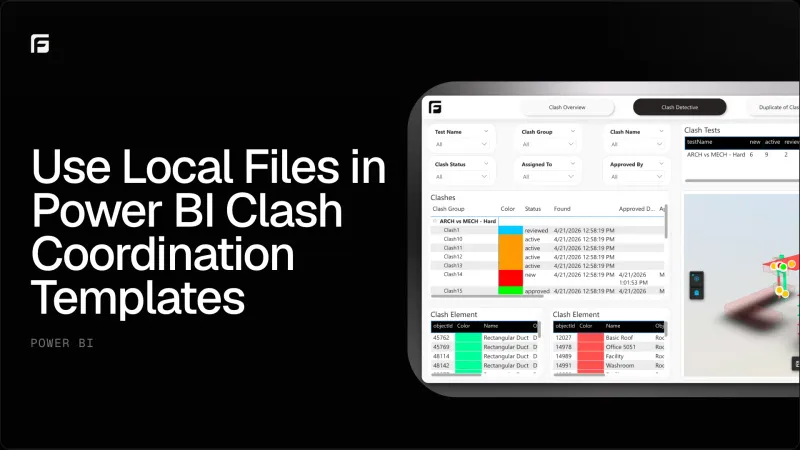
A cleaner way to report local Navisworks clashes
Many BIM coordination teams still manage clashes locally in Navisworks.
That workflow is common for good reasons. Navisworks is familiar, flexible, and already part of many coordination processes. But once clash results need to be reported, the process often becomes manual: export data, clean it up, rebuild charts, and prepare screenshots for the next meeting.
Frame’s Navisworks local clash template is designed to make that reporting step easier.
It gives teams a Power BI starting point for turning local clash results into a dashboard that is easier to filter, review, and share.
What the template is for
The local clash template is built for teams that want to keep using Navisworks while improving how they report coordination progress.
Instead of treating clash exports as one-off files, the template gives the data a consistent structure inside Power BI. That makes it easier to track open issues, review discipline conflicts, and understand whether the clash backlog is moving in the right direction.
The template supports practical coordination views such as:
- Clash summary cards for open, closed, and total clash counts.
- Status and priority breakdowns for weekly review.
- Discipline comparisons to see where conflicts are concentrated.
- Location-based filtering for focused coordination meetings.
- Trend views to understand whether the backlog is improving.
The result is a dashboard that can support the meeting instead of another spreadsheet that needs to be explained.
Why local clash reporting still matters
Not every clash workflow lives fully in the cloud.
Many teams still receive local Navisworks files, work from local coordination models, or run clash tests in environments where cloud automation is not the main process. Those teams still need reliable reporting.
The local template helps bridge that gap. It lets teams keep their Navisworks process while using Power BI as the reporting layer.
That is especially useful for:
- Weekly BIM coordination meetings.
- Trade partner progress reviews.
- Internal QA and model health checks.
- Executive summaries that need simple clash status visuals.
- Projects where Navisworks remains the source of coordination truth.
What changed
We recently updated the Navisworks clash templates, including the local version, with fixes to the Power BI cards and refreshed viewer support.
These updates are focused on making the template more dependable as a reporting asset. The goal is simple: coordinators should spend less time fixing the dashboard and more time reviewing the actual coordination problems.
Choosing the right clash template
When selecting a clash template in Frame, you now have two options:
- Frame clash template for clash reports uploaded and processed through Frame.
- Local clash template for clash reports and Navisworks data stored on your own machine.
If you choose the Local clash template, Power BI needs two required inputs before the template can open correctly:
- File Path: the local path where the clash or model data is stored on your machine.
- Item GUID name: the column or property name in your Navisworks file that identifies each item.
The Item GUID name depends on the language and naming used inside your Navisworks file. For example, it could appear as Item GUID, Elemento GUID, or another translated variation. The important part is that it points to the unique item identifier used by the clash data.
Both fields are required. Without the local file path and the correct GUID field name, the Power BI template will not know where to load the data from or how to match clash records back to model elements.
Final thought
Clash reporting should not require rebuilding the same dashboard every week.
With the Navisworks local clash template, Frame gives BIM teams a cleaner way to turn clash results into Power BI reporting. It keeps the familiar Navisworks workflow, but adds a more structured way to communicate progress, risk, and priorities.
If you want a broader overview of clash dashboards, read our guide to the Clash Management Power BI Template for Navisworks and Autodesk BIM. You can also explore how Frame connects BIM data to Power BI in our Power BI starter template guide.