Improving Large BIM Models in Power BI
Frame Power BI Viewer 0.8.5.7 adds adaptive model loading, WebGPU support, navigation controls, persistent viewer settings, and fixes for filtered and saved views.

Frame Team
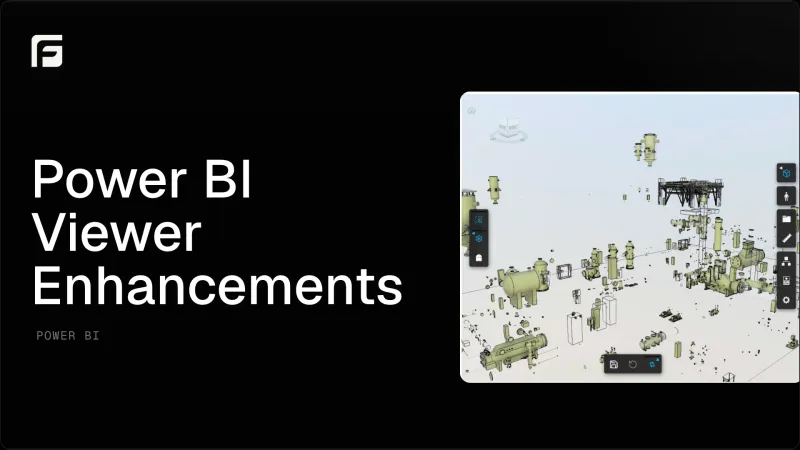
We have been testing the Frame viewer in Power BI with increasingly large BIM models.
One of those tests used a federated Navisworks project large enough to make the browser’s memory use and every part of the loading sequence visible. It was a useful reminder that loading a model inside a report is a different problem from opening it in a dedicated BIM application. The viewer shares the page with Power BI, its data model, filters, and every other visual in the report.
Version 0.8.5.7 is our latest step toward making that workflow faster and more predictable.
See the updated viewer settings
These examples start with the viewer inside a complete Power BI report, then focus on the settings report authors can use to control model loading, rendering, and navigation.
Adaptive loading for filtered reports
The biggest enhancement in this release is adaptive model loading.
When a Power BI filter is active, the Frame viewer can use the filtered object IDs to load the relevant model elements instead of waiting for the complete model before showing useful geometry.
For example, a report might be filtered to one discipline, building area, system, or group of assets. The viewer can begin with that smaller working set, which reduces the amount of geometry it needs to prepare for the question being answered.
This is especially useful for large federated and Navisworks models. A project team reviewing one package does not always need to load the entire federation first.
The Power BI filter still controls what appears in the viewer, but the filtered elements are no longer incorrectly selected or isolated when the model opens. The result is a cleaner starting state for navigation and review.
Here is adaptive loading in action inside Power BI:
Choose between Auto, WebGPU, and WebGL
Version 0.8.5.7 also adds a Graphics Backend setting with three options:
- Auto, the recommended default
- Prefer WebGPU, for supported browsers and devices
- WebGL, for an explicit compatibility path
WebGPU gives the Autodesk Viewer access to a newer browser graphics API. Its performance depends on the model, browser, operating system, and graphics hardware, so we are keeping Auto as the default while teams test it on their own reports.
Changing the graphics backend requires the visual to reload because the rendering context is created when the viewer starts. If WebGPU is unavailable, the viewer can safely fall back to WebGL.
Navigation sensitivity
Large models also made another detail obvious: the same orbit and pan speed does not feel right for every model or every device.
The new Navigation Sensitivity control lets report authors choose between:
- 35%
- 60%
- 100%
- 140%
The setting changes pan and orbit sensitivity inside the viewer. Lower values help with precise inspection, while higher values make it easier to move across a large project quickly.
Remember viewer settings
Report authors can now enable Remember Viewer Settings to preserve selected rendering and navigation preferences with the report.
This is useful when a report has been prepared for a recurring coordination meeting or a specific presentation workflow. The viewer can return with the intended navigation behavior and visual preferences instead of requiring the user to configure them again.
We also improved compatibility with existing saved views. Navigation settings added to a view created in an earlier visual version now take effect when that view is updated and restored.
Clearer loading feedback
Large-model loading is easier to trust when the viewer clearly communicates what it is doing.
This release improves loading progress and runtime feedback so users can see whether the visual is preparing geometry, applying an adaptive filter, or has finished loading. These status signals also help us diagnose how a report behaves with different model sizes and graphics backends.
What changes in the reporting workflow
The practical change is that a large model becomes useful sooner.
A BIM or VDC lead can open a report already filtered to the part of the project being discussed, navigate it at a comfortable sensitivity, and retain the viewer preferences prepared for that report. The model remains connected to the surrounding Power BI visuals, but the initial viewing workload can better match the current analysis.
Adaptive loading is still an area we are actively improving. Different model formats, federations, browsers, and report designs create different performance profiles. Version 0.8.5.7 establishes the foundation we will keep building on for large-model workflows in Power BI.
Upgrade an existing Power BI report
Power BI Viewer 0.8.5.7 introduced these large-model improvements. Existing reports can be upgraded to the latest compatible Frame visual:
Download the latest Frame Viewer Visual (0.8.5.8)
- Open Frame and go to the Dashboard.
- Select the Power BI Visuals tab.
- Download the latest Frame Viewer Visual.
- In Power BI, open the Visualizations pane and import the downloaded
.pbivizfile.
The visual keeps the same Power BI identity, so importing the new package updates the Frame viewer already used by the report. You do not need to rebuild the report or reconnect its fields.
We think the most interesting part of this release is the shift from treating every model load the same to letting the report context shape what the viewer loads first. That is the direction we want to keep exploring as models and federations get larger.