Model Version Analysis in Power BI: Frame and ACC/Forma Templates
Use Frame's version templates to compare completed local models or analyze synchronized ACC/Forma model history in Power BI.

Frame Team
We keep coming back to the same question in model reviews: what changed since the last version, and is the change worth a closer look?
Opening two files and comparing them manually can answer that question once. It is much less useful as a weekly habit. The comparison needs to be repeatable, and the result needs to land somewhere the rest of the project team can read.
Frame now has separate Power BI templates for that workflow, depending on where the model comes from.
Two sources, two comparison workflows
The template dialog groups the choices around the source of the model:
Scroll horizontally to see all columns.
| Source | Template | Comparison shape |
|---|---|---|
| Frame local models | Frame Versions | Compare two completed local Frame uploads as baseline and current model |
| ACC/Forma model item | Compare two versions | Choose any two synchronized Docs versions from the same model item |
| ACC/Forma model item | Version history | Analyze consecutive changes across all versions, the latest versions, or a selected range |
The distinction is practical. A pair of local Frame uploads is a useful way to compare two project files that have been prepared in Frame. An ACC/Forma model item already has a version history, so the report can use that sequence instead of asking the team to create a second comparison slot by hand.
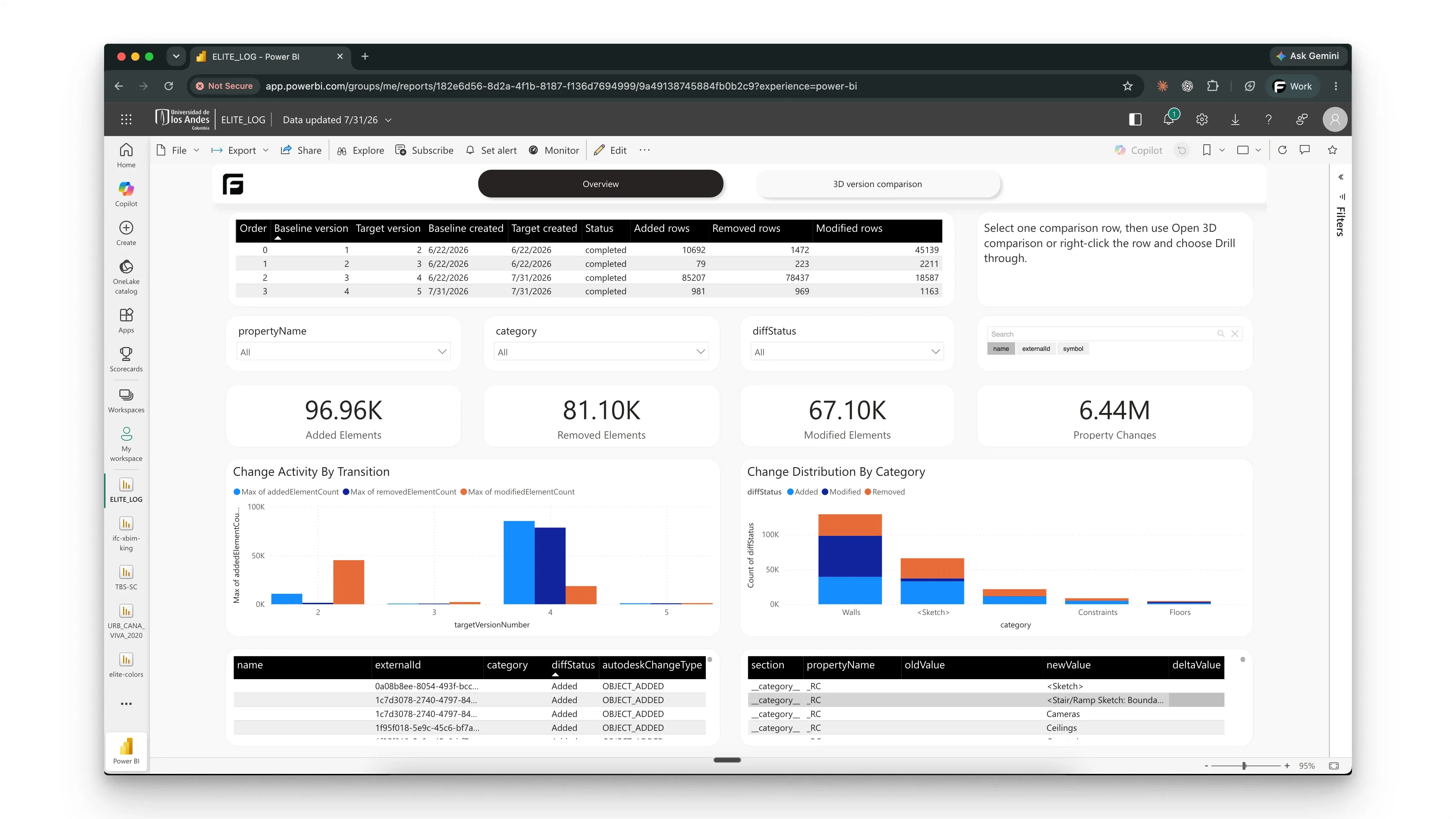
The version overview brings comparison status, added, removed, and modified elements, category distribution, and property changes into one review page.
Frame Versions: compare two local model slots
Choose Frame Versions when the comparison is between two completed local Frame models. The template asks for:
- a baseline or previous model
- a newer or current model
Frame checks that the models are ready for comparison, have generated report artifacts, and use compatible model credentials. Once the sources are selected, Frame prepares the comparison data and creates the report from that prepared dataset.
This is a good fit for a design team that receives two local IFC, Revit, or Navisworks deliveries and wants to review movement between them without rebuilding the comparison logic in Power BI.
Compare two ACC/Forma versions
For a non-federated ACC/Forma model item with at least two synchronized versions, choose Compare two versions. The report setup uses the version labels from the Docs history and lets the reviewer select the exact baseline and target.
That makes the comparison intentional. A coordinator can compare the publish before a design decision with the publish after it, rather than always comparing against whichever version happens to be current.
The resulting report is useful for questions such as:
- Did the element count move as expected?
- Which categories or levels absorbed the largest change?
- Which model objects were added, removed, or modified?
- Does the latest publish support what the team agreed in the meeting?
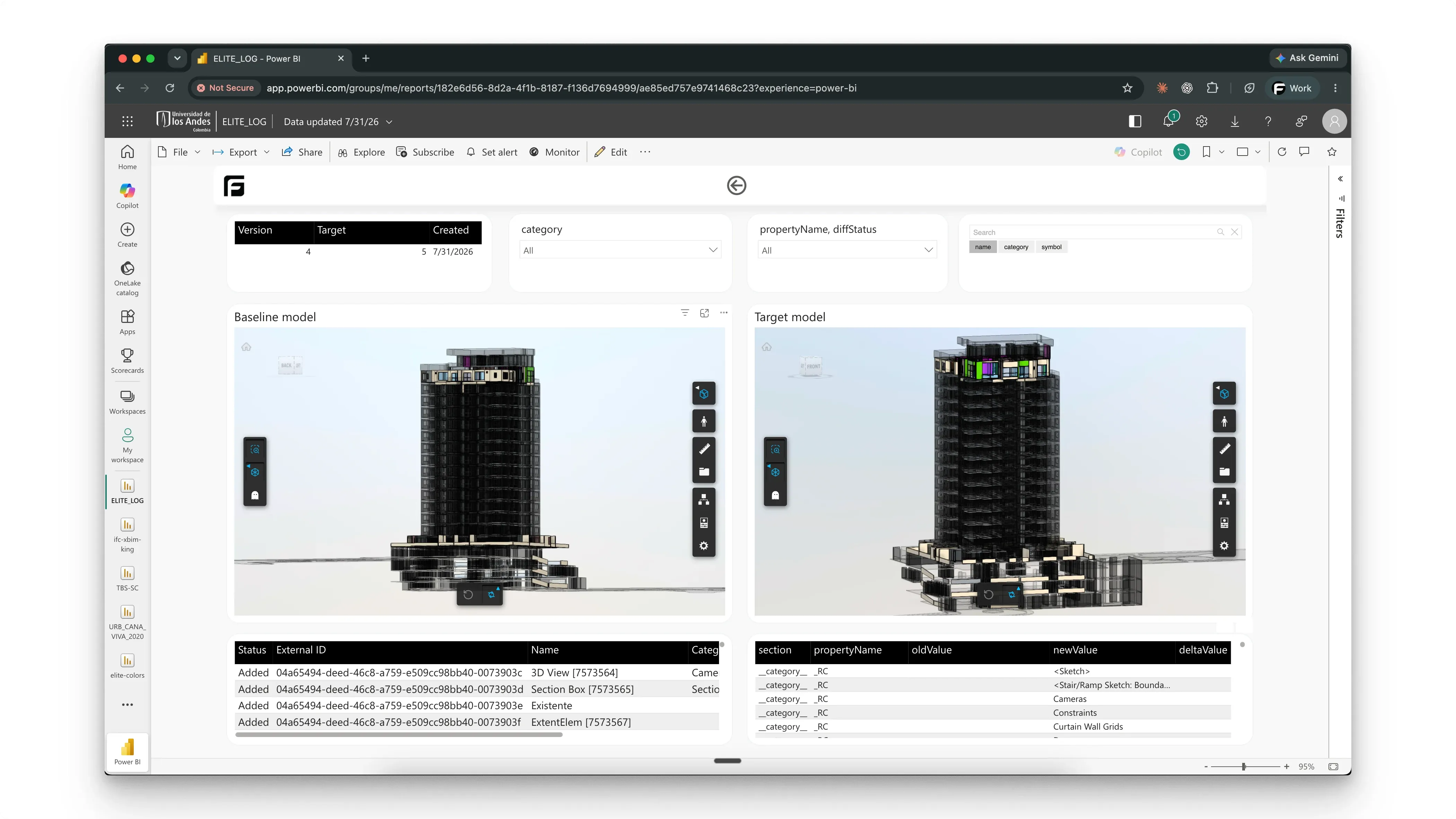
A selected comparison opens the baseline and target models side by side, with the changed-element and property records kept in the same report view.
Version history: review a sequence of changes
The Version history template is for the longer review. It can analyze consecutive changes across all synchronized versions, the latest versions, or a selected range.
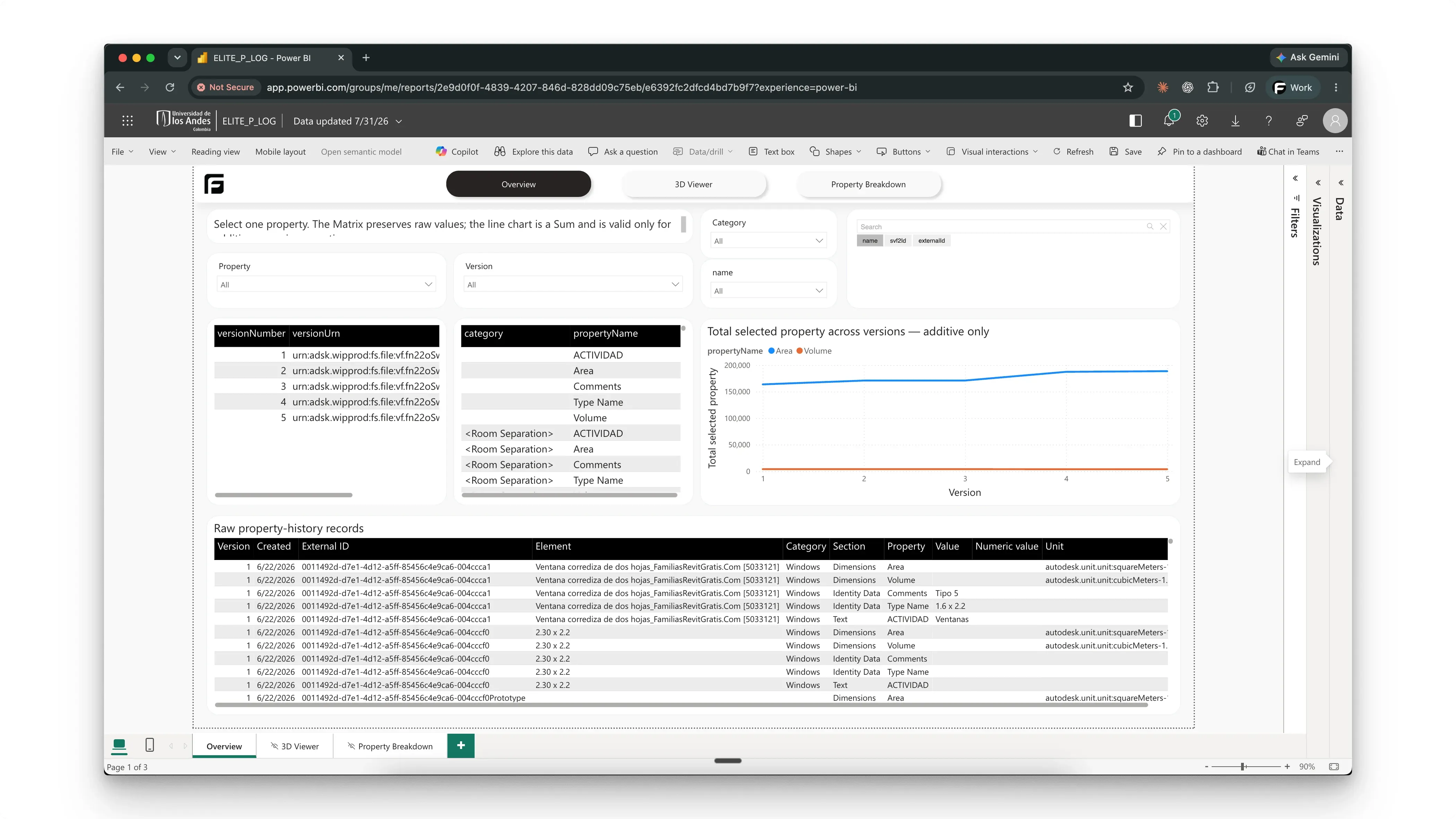
The property-history overview connects the version inventory to selected property trends and the underlying records.
The setup can also be narrowed to the data that matters for the review. For example, a team can prepare whole-model comparisons while focusing the history on selected properties or categories. That creates a more useful signal than putting every available field on every page.
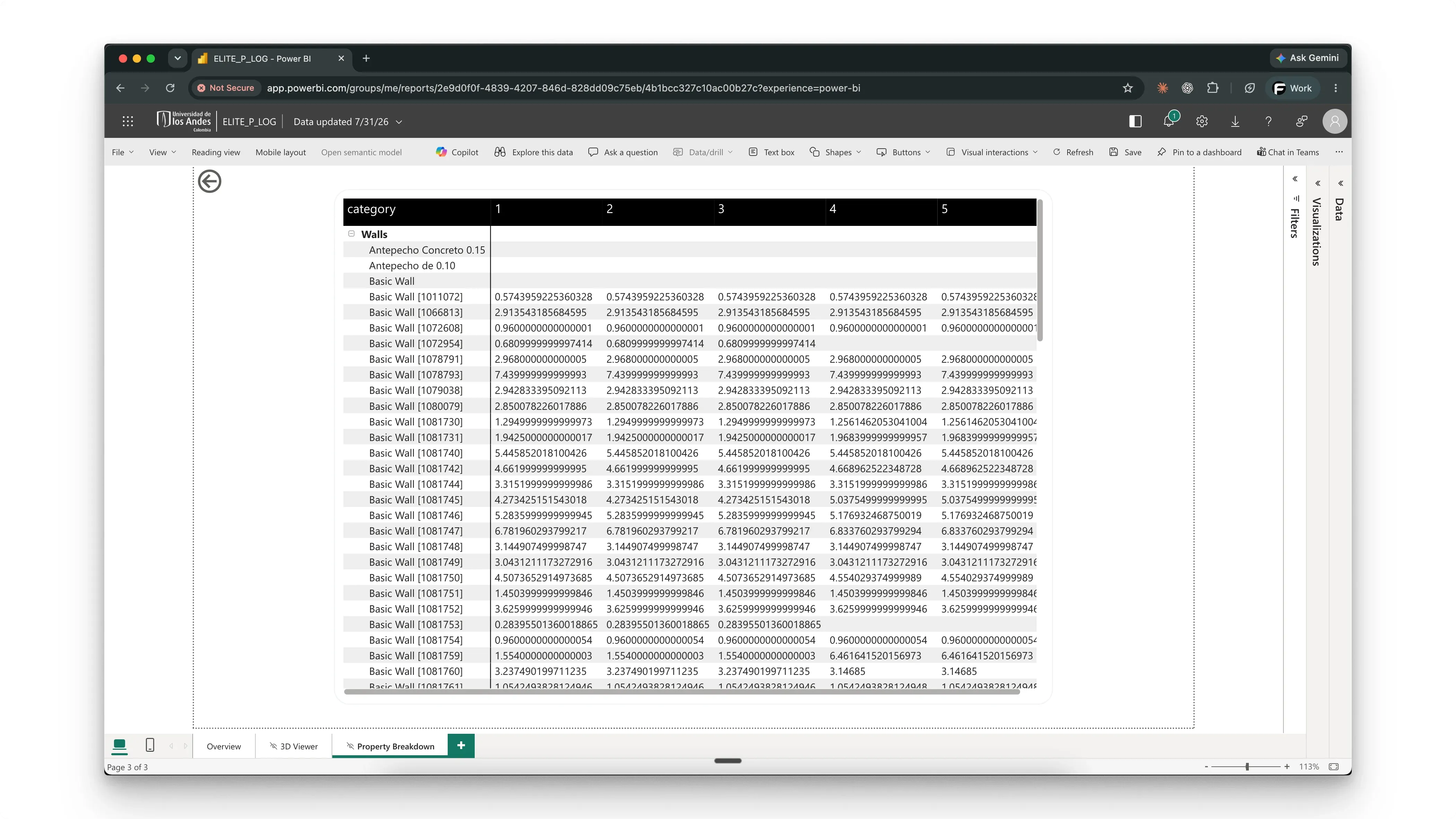
The property breakdown matrix makes individual values readable across each selected version.
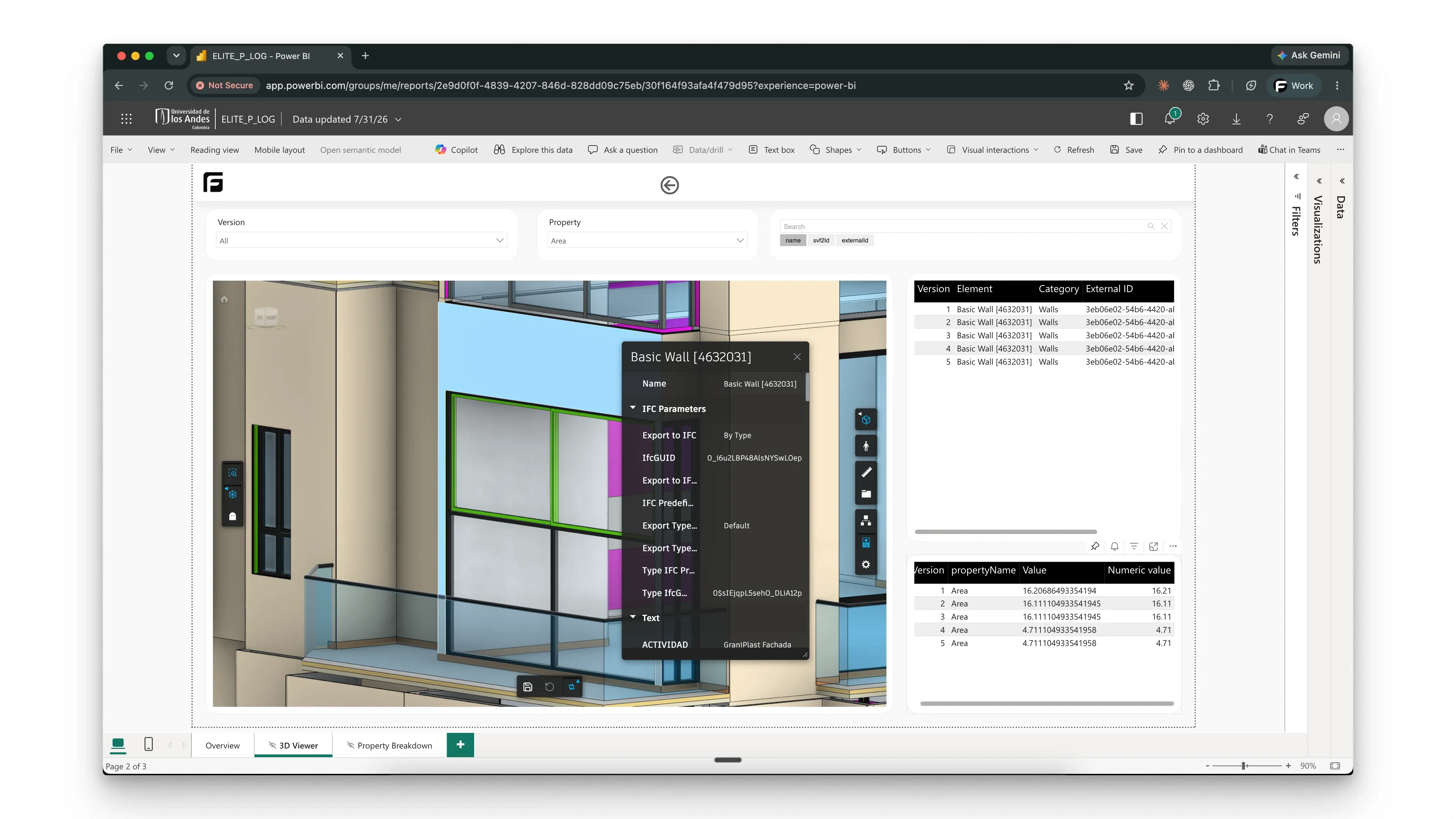
The 3D drill-down keeps the selected element, its model properties, and its version-by-version values together.
Version history is currently marked Beta in the template dialog. The workflow is ready to try, but the best review habits are still forming. It currently expects a non-federated ACC/Forma model item with at least two synchronized versions.
The workflow from model to report
The report creation path is the same for both sources:
- Open a report slot that is ready for a new report.
- Choose the version template for the model source.
- Select the two sources or the version-history scope.
- Let Frame prepare the comparison dataset.
- Open the generated Power BI report and review the changes with model context.
The preparation step is important. Power BI receives a comparison dataset that has already been generated for the selected sources or range. The report does not need to calculate a full model diff every time a page opens.
What makes the report useful in a meeting
A version report should help the team decide what to inspect next. The most useful pages usually connect three things:
- the size and location of the change
- the properties or categories that explain it
- the model objects that a reviewer can verify in 3D
For a weekly design review, that might mean starting with the total number of changed elements, filtering to a level or category, and then checking the affected objects in the viewer. For a handoff, it might mean showing that a known scope change appears in the model and that unrelated categories stayed stable.
The report becomes a review artifact rather than a one-time technical diff.
A small caveat that matters
The templates are source-specific. Frame Versions is for completed local Frame models; the ACC/Forma templates use synchronized versions from one non-federated model item. Federated ACC views are not yet available for these version dashboards.
That constraint is worth checking before a meeting. If the source and version inventory are ready, the rest of the setup is deliberately small, and the report can become part of a regular publish-review cycle.
We want to see these templates used on a longer sequence next: a project with enough weekly publishes that the team can distinguish normal model movement from a change that deserves a coordination conversation.