Meet the Frame agent, and bring your own AI to your BIM models
Frame's in-app chat is gone. In its place: an agent docked next to the 3D viewer that runs viewer commands from plain-language requests, and MCP access so Claude, ChatGPT and other clients can read your model datasets on every plan.

Frame Team
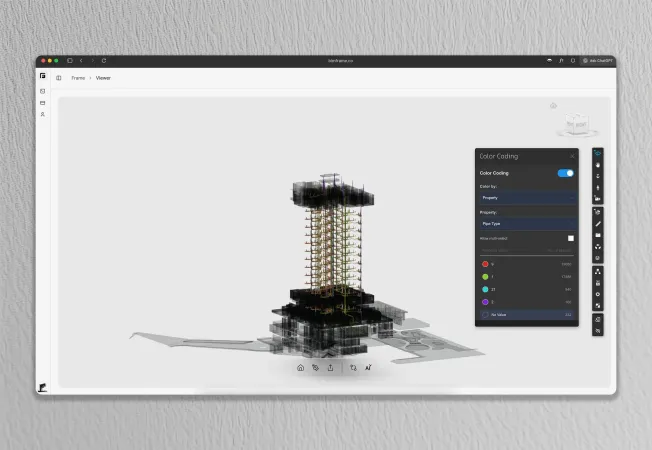
We have removed the AI chat from Frame. It answered questions about a model, but it stopped there: the answer sat in a side panel and you still had to go and do the work in the viewer yourself.
Its replacement is the Frame agent, a terminal panel docked next to the 3D viewer. You type what you need in plain language and the agent runs the viewer commands for you, printing each one as it goes. This post covers what the agent does, what it does not do yet, how credits work, and a second change that applies to every plan: you can now connect Claude, ChatGPT and other MCP clients straight to your model datasets.
What the agent does
The agent has the same tools you use in the viewer: find, properties, isolate, hide, colour, section, camera, measure, notes, screenshots, sheet text and property queries. A request becomes a short sequence of those commands.
Some requests from real model reviews:
- “Isolate the walls on level 2 and colour them by fire rating.” The agent finds the walls on that level, isolates them and applies a colour per fire rating value.
- “Count doors per type.” It reads the door properties, groups them by type and prints the table.
- “Section the model at level 3.” It places the section and fits the camera.
- “Capture a screenshot of the selected elements.” It frames the selection and saves the image.
Two details matter in day-to-day use. First, the agent works on your current selection: select a few elements and ask about them, or select nothing and it works on the whole model. Second, it shows its work. Every command and its result stays in the panel, so you can check what was found before you rely on a count or forward a screenshot to a client.
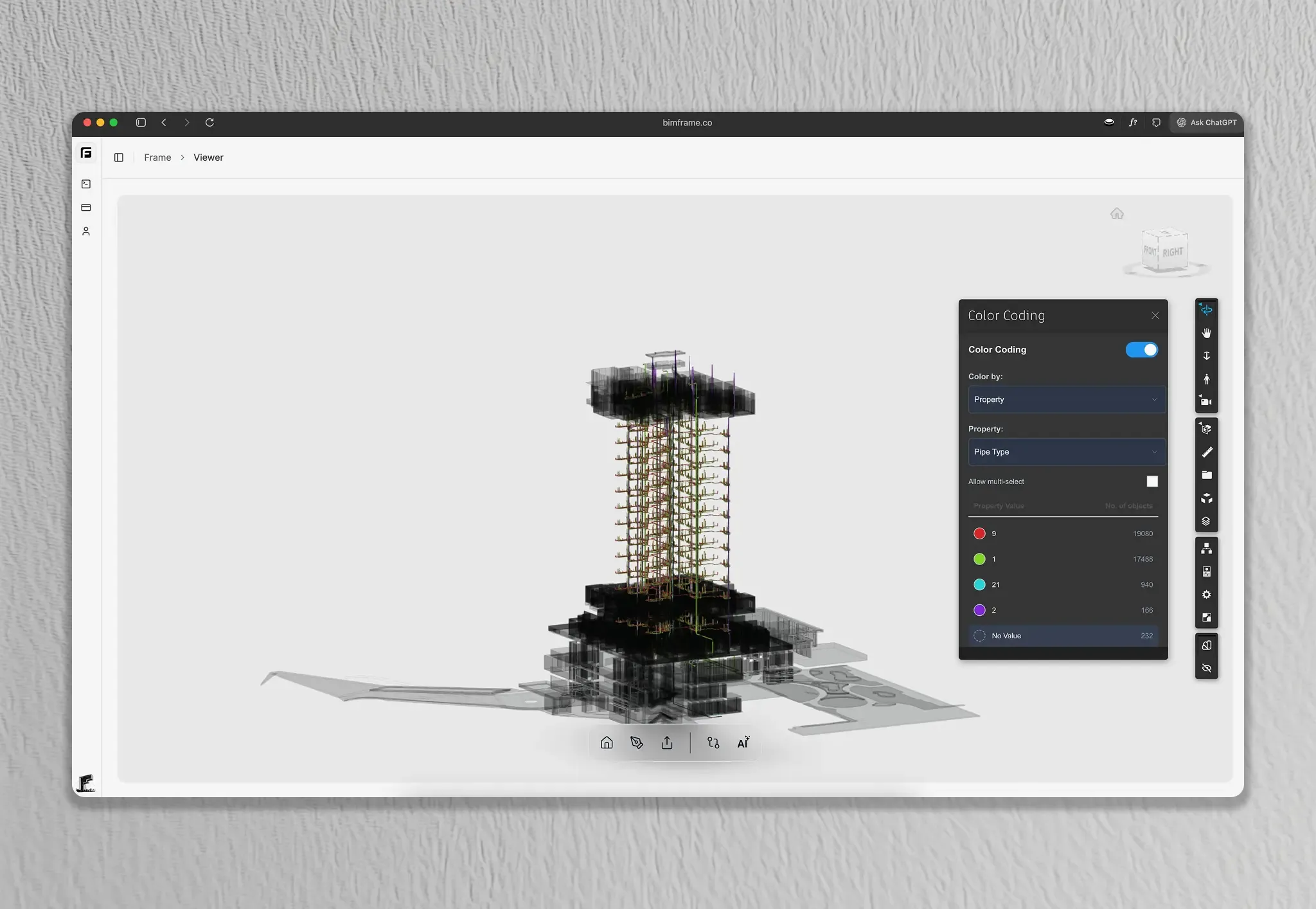
The agent uses the viewer’s own tools, such as colour coding, so the result is the same state you would reach by hand.
What it supports today
This is the first release, and we would rather be precise than broad:
- Works with: single Autodesk-processed models (Revit, Navisworks and IFC translated through Autodesk Platform Services), on desktop Chrome, Edge and Safari.
- Not yet: IFC models processed by the Frame engine, federated and ACC Model Coordination models, and mobile browsers.
If your work is mostly in federated coordination models, the agent will reach you in a later release. The bring-your-own-AI path below already works with the datasets of every model type.
Plans and credits
The agent is included in every paid plan. Each plan comes with a monthly allowance of AI credits that covers the agent and AI markup descriptions:
Scroll horizontally to see all columns.
| Plan | AI credits a month |
|---|---|
| Free | 20 (AI markup descriptions only) |
| Starter | 700 |
| Professional | 1,500 |
| Business | 3,000 |
| Enterprise | Custom |
Most requests use 1 to 5 credits, including multi-step ones that isolate a set, query its properties and capture the result. Credits reset each billing period and do not roll over.
When credits run out, the agent pauses until the next reset. Nothing else changes: the viewer, markups, reports, the Excel add-in and the Power BI templates keep working.
AI markups stay on every plan. You can still draw a markup and let AI draft or improve its description from a screenshot of the model. Those requests draw from the same credits, which is what the Free plan’s 20 credits are for.
Bring your own AI
Many teams already have an AI they trust, with their own data agreements in place. So we made Frame’s model data available to it, on every plan including Free, at no credit cost.
Remote MCP server
Frame now runs a remote Model Context Protocol
server at https://www.bimframe.co/mcp. Add it to Claude, ChatGPT or any other
MCP client, sign in with your Frame account, and the client can:
- list the models in your library and whether a report exists for each
- read a model’s dataset scopes (the whole model or a saved view)
- download the Parquet datasets for assets, properties and views
- read a column guide that explains the tables, the join key and example queries
These are the same Parquet tables that feed Frame’s Power BI and Excel templates, so your client can count, group and join the way an analyst would, instead of guessing from a screenshot. Access is read-only. A connected client cannot upload, change or delete anything in Frame, and Frame never shares your Autodesk credentials or API keys through it.
WebMCP in the dashboard
Browser agents, such as the ChatGPT desktop app’s built-in browser or Chrome’s agent, can use the same tools directly from the Frame dashboard. Turn on AI clients in your profile, open the dashboard inside the agent’s browser, and ask about the model you have open.
The setup guide walks through both options and lists the current client requirements.
How your data is handled
Agent and AI markup requests go through Vercel AI Gateway to OpenAI (including Azure OpenAI) and Anthropic (including AWS Bedrock and Google Vertex AI). Those providers operate with zero data retention for Frame’s requests and do not train on your prompts or model data.
The AI only sees what you send: model metadata, element properties and sheet text for the model you have open, and the screenshot attached to a markup. Frame keeps a usage log (user, model, token counts, cost and time) for billing, retained for 13 months. The content of your conversations is not stored on Frame’s servers.
When you bring your own AI, your client retrieves the datasets directly and processes them under its own provider’s terms. Frame does not send your data to an AI provider on its own in that path. The details are in our privacy policy.
Getting started
- On a paid plan, open a single Autodesk-processed model in the dashboard viewer and open the agent panel next to it. Select a few elements and try “count these by type”.
- On any plan, add
https://www.bimframe.co/mcpto your MCP client and ask it which models you have in Frame. - New to Frame? Create an account or read more on the Frame agent page.
Related Frame posts: